Grok Imagine Image 2.0: Image Generation Guide
A practical guide to Grok Imagine Image 2.0 for text-to-image generation, image editing, prompts, limits, and VioEvo's current contract.
Create an image with Grok Imagine Image 2.0 before you continue.
Version note: This page covers the Image 2.0 model entry currently exposed by VioEvo for text-to-image and image-to-image work. For the broader Grok Imagine family, including video versions and shared architecture context, see the Grok Imagine model guide.
Developer: xAI · Model family: Grok Imagine · Family API announced: January 28, 2026 · Official sources: Grok Imagine API announcement · Imagine API documentation
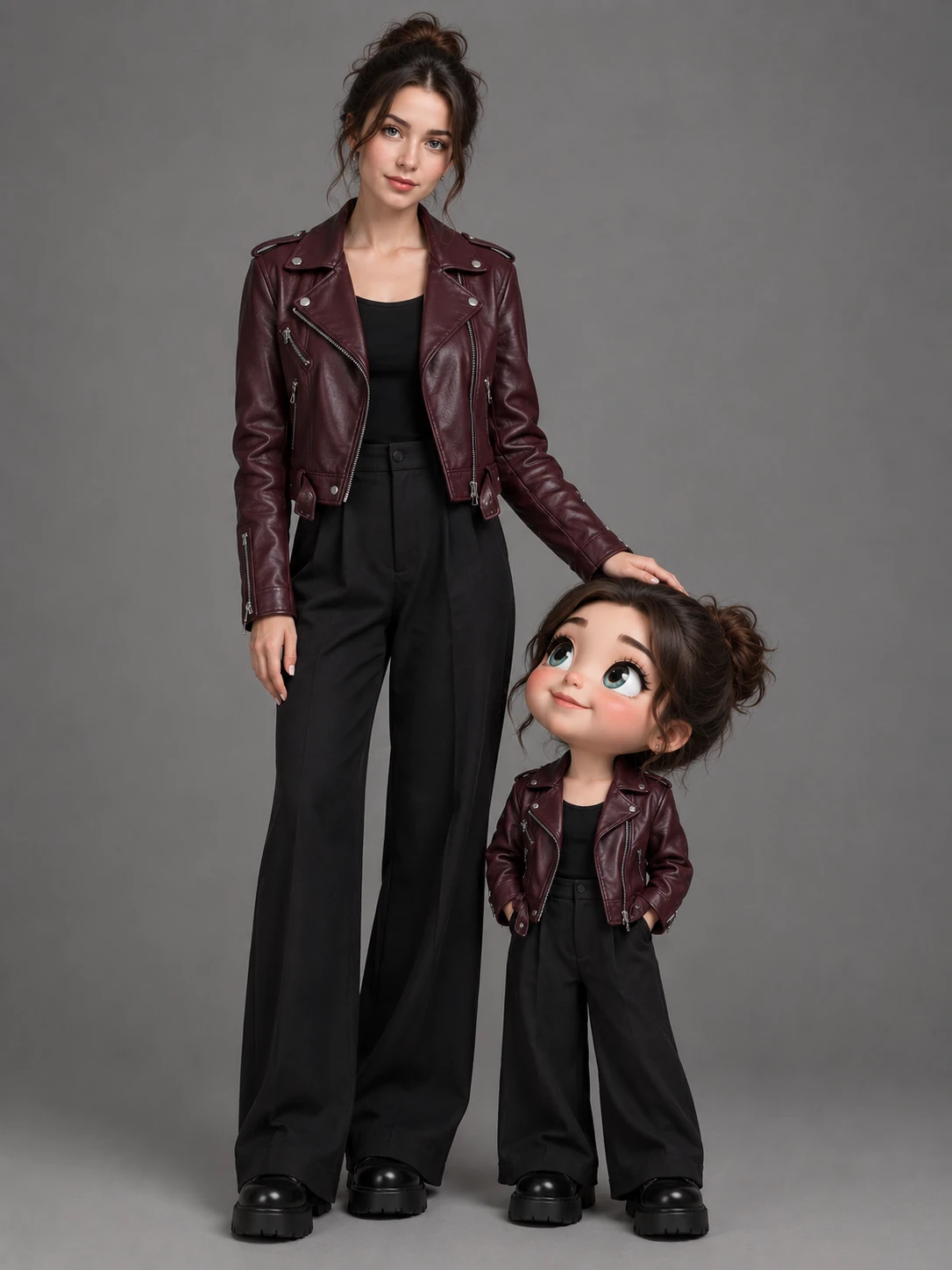
Grok Imagine Image 2.0 is VioEvo's current versioned Grok Imagine image model. It gives users one entry point for creating a new image from a prompt or transforming uploaded reference images with natural-language instructions. The model page is intentionally about image generation and editing; video generation uses the separate Grok Imagine Video 1.5 guide.
xAI's public sources establish the Grok Imagine family and its image workflows. The sources linked here do not state a separate xAI API release date for Image 2.0, so this guide keeps xAI capability facts separate from VioEvo-specific workflow details.
What the Official Sources Establish
xAI describes Grok Imagine as a unified creative API for end-to-end visual workflows. Its official Grok Imagine API announcement and Imagine API documentation are the appropriate sources for xAI-level capability and API claims.
Those sources should not be confused with VioEvo's product contract. The exact input count, credit cost, available controls, retired model records, and exposed workflow list below describe VioEvo's implementation. They are not claims that every xAI client has the same limits.
Image 2.0 at a Glance
| Item | Current behavior |
|---|---|
| Primary workflows | Text to Image and Image to Image |
| Reference images | 1–5 images for Image to Image; VioEvo product contract |
| Generation cost | 20 credits per generated image; VioEvo product contract |
| Specialized segmentation | Not exposed in VioEvo's current release |
| Video generation | Use the separate Grok Imagine Video 1.5 model |
| Model identifier | grok-imagine-image-2.0; VioEvo catalog identifier |
Source: VioEvo's current Image 2.0 product contract and tool controls. xAI-level family context: Grok Imagine API announcement and Imagine API documentation.
Text-to-Image Workflow
Text to Image is the right choice when the prompt should define the complete composition. Begin with the subject and action, then add the setting, visual treatment, framing, and any text that must appear in the image.
A reliable prompt structure is:
- Subject and action: what is being shown and what it is doing.
- Environment: location, time of day, materials, and background.
- Composition: camera angle, distance, orientation, and placement.
- Visual treatment: lighting, color palette, lens feel, or illustration style.
- Constraints: what must be readable, centered, visible, or omitted.
Example: A studio product photograph of a cobalt travel kettle on a pale stone table, soft morning window light, crisp stainless-steel details, three-quarter camera angle, generous negative space above the product, editorial catalog composition.
Use the aspect-ratio control for the destination format. A portrait social asset, product card, poster, or landscape header needs a different composition; choosing the format before generation gives the model a clearer spatial constraint than cropping afterward.
Image-to-Image Editing Workflow
Image to Image is the right choice when an existing image supplies the subject, product, character, or composition that must remain recognizable. Upload the source image and describe the intended change in plain language.
Separate the instruction into two parts:
- Change: the background, lighting, wardrobe, color treatment, object, or environment to modify.
- Preserve: the subject identity, product silhouette, logo placement, camera angle, or other elements that should remain stable.
Example: Replace the background with a warm sunset gradient, keep the product shape and logo unchanged, preserve the three-quarter camera angle, and add a soft contact shadow beneath it.
VioEvo accepts one to five reference images for this workflow. When using more than one image, assign each reference a clear role in the instruction, such as “use image 1 for the product shape and image 2 for the color palette.” The 1–5 input range is a VioEvo product-contract value; the image-to-image tool controls are the source of truth for the currently accepted inputs.
Prompting for Reliable Edits
Natural-language editing works best when the request is specific about scope. A short instruction such as “make it better” gives the model no stable boundary for the edit. Instead, identify the target, the operation, and the invariant.
Background replacement: name the new setting and specify which foreground subject must remain unchanged.
Product variations: name the exact color, material, and finish while asking to preserve proportions, branding, and camera position.
Style transfer: describe the visual treatment and keep the subject, pose, and composition explicit.
Object removal: identify the object and describe how the surrounding texture, shadow, or perspective should be reconstructed.
For text inside an image, include the exact wording in quotation marks and specify its placement and hierarchy. Treat the result as a draft for important packaging, legal copy, or branded typography: inspect the output and rerun the edit if any characters are wrong.
Capability Boundaries and Limitations
The following boundaries are important when planning a workflow:
- Image 2.0 is exposed here for text-to-image and image-to-image generation. It is not the video model; use image-to-video with Grok Imagine Video 1.5, or use that video model for text-to-video.
- VioEvo does not currently expose specialized segmentation workflows. Use a focused image-to-image instruction for a general edit instead of assuming a separate mask or segment operation is available.
- Reference images guide the edit but do not guarantee pixel-identical preservation. For high-stakes logos, labels, faces, or product geometry, review the result before publishing.
- More reference images do not automatically improve an edit. Conflicting subjects, lighting, or viewpoints can make the intended source ambiguous; use the smallest set that establishes the desired result.
- Credit usage and input limits are VioEvo rules. They can change independently of xAI's own API pricing or request limits, so the live tool surface remains authoritative for current execution details.
Costs and Availability in VioEvo
VioEvo charges 20 credits per generated Image 2.0 image. This is a VioEvo product-contract value, not an xAI API price. The retired Quality tier is no longer offered as a separate new-request option. Historical jobs retain their original model identifiers for history and audit purposes, but a retired model cannot be retried after it has been disabled.
Choosing the Right Grok Imagine Page
Choose the Image 2.0 page when you need a still image from text or an edit based on reference images. Choose the Grok Imagine family guide when you need a version overview or a comparison between image and video capabilities. Choose the Grok Imagine Video 1.5 guide when the output should be a moving clip with image-to-video or text-to-video generation.
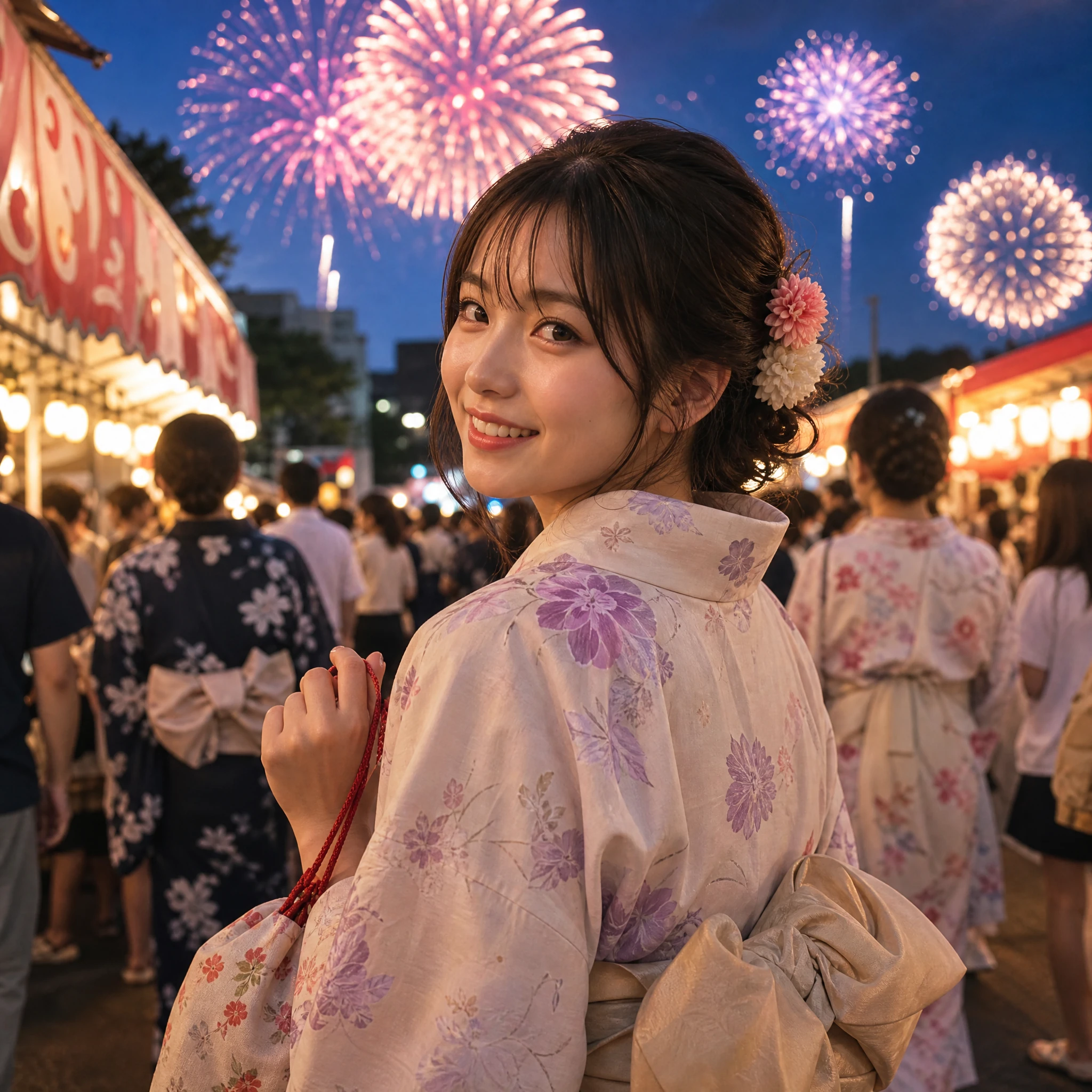
For another high-efficiency image workflow with 1K to 4K output and up to 14 reference images, compare the Nano Banana 2.1 guide using the same prompt and reference set.
Frequently Asked Questions
Is Grok Imagine Image 2.0 the same as the old Grok Imagine image model?
No. VioEvo registers Image 2.0 as a separate versioned model and keeps previous capability records available only for historical compatibility. The model identifier and current tool contract are VioEvo implementation details.
Should I use Image to Image for editing?
Yes. Use Image to Image whenever an uploaded image is part of the intended result. Text to Image is for creating the composition from the prompt alone.
How many reference images can I upload?
VioEvo currently accepts one to five reference images for Image to Image. This is a VioEvo product-contract limit; check the live tool controls if the contract changes.
Does Image 2.0 replace the old Quality option?
Yes. VioEvo now exposes one standard Image 2.0 text-to-image option instead of a separate grok-imagine-image-quality product for new requests.
Does this page describe video generation?
No. Image 2.0 covers still-image generation and editing. For a moving output, use the separate Grok Imagine Video 1.5 workflow.
