Grok Image to Video: Turn a Still Into Motion

Create a Grok AI video from one image you already trust. Grok Imagine treats that upload as the opening frame, then follows a focused motion brief for products, portraits, concepts, and social posts.

One first frame · one directed shot · one Grok video to refine

Grok image to video generator

How Grok Image to Video Protects the Opening Frame

In a Grok image to video shot, the uploaded frame carries the subject, product geometry, and lighting into the generated clip. The prompt should direct the next moment without replacing that visual anchor.

1. Upload an image

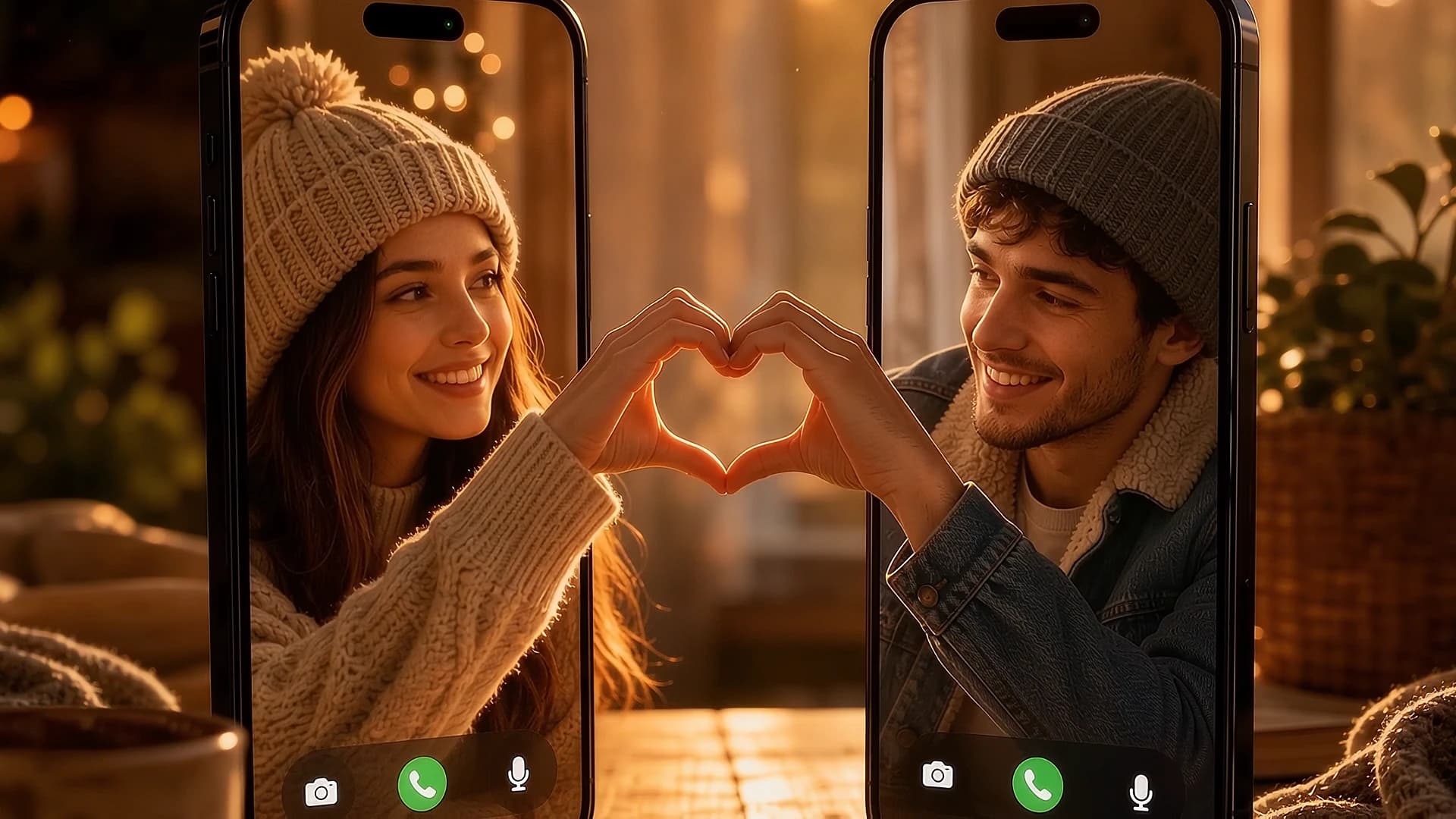
First frame showing two smartphones on a cafe table
Source image

2. Describe the motion

Product reveal

Smooth camera zoom-out and crane up. Revealing that the two phones are placed on a wooden café table by a real young couple sitting opposite each other, smiling warmly across the table at golden hour. Warm lens flare, realistic depth of field, cinematic lighting.

Motion briefGrok Imagine

3. Generate the video

Generated motion

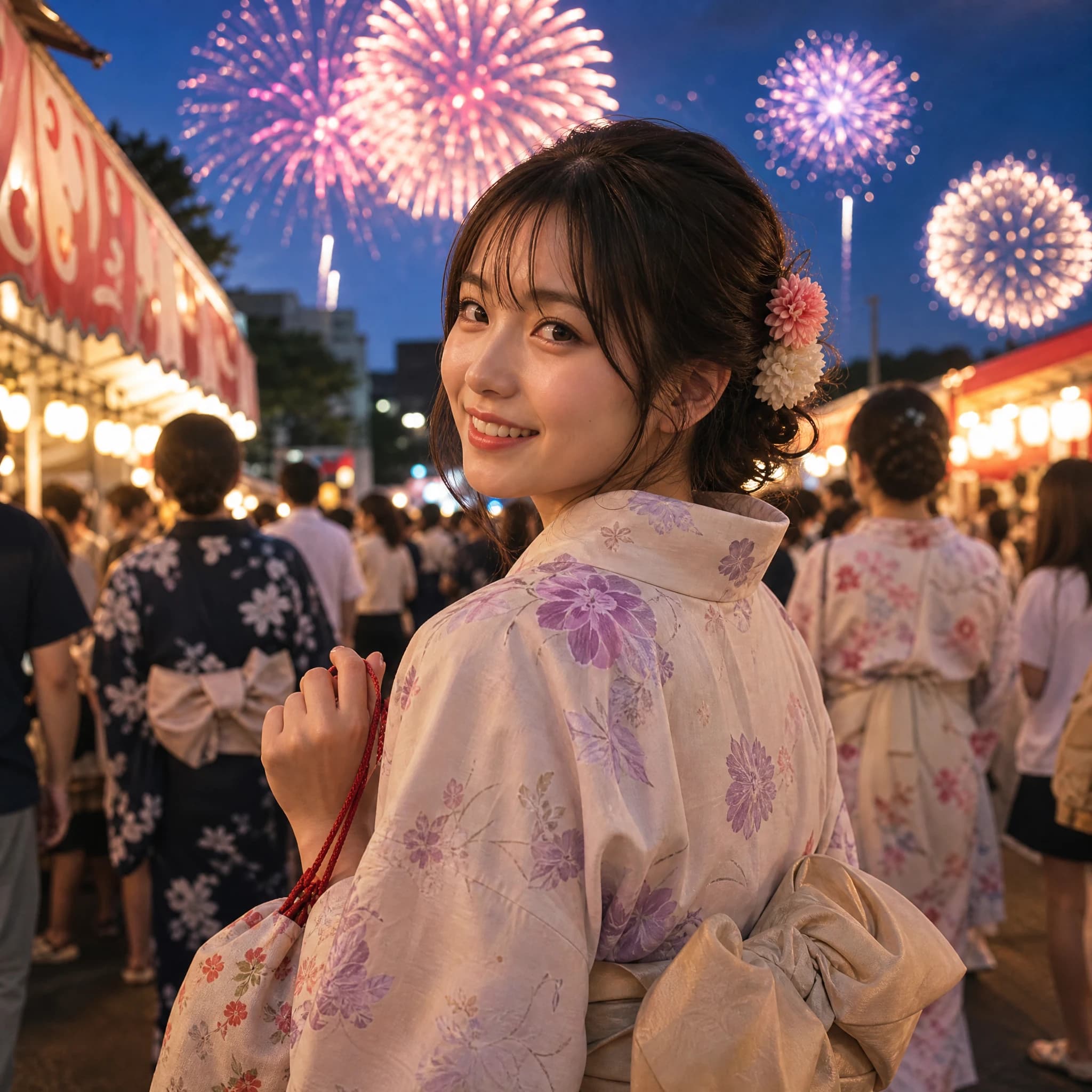
Each clip starts from the still image shown above or beside the prompt. The motion brief describes the time-based change, while the first frame anchors the subject, composition, and visual identity.

Grok Video Generator Workflow: From Image to Motion

A strong Grok image to video result starts with a frame that already communicates the idea. Use the guide below to give the Grok video generator a clear continuation, shape a prompt it can execute, and choose the right level of motion for the shot.

1. Upload an image

First frame showing a Japanese girl at a night festival
Source image

2. Describe the motion

Festival portrait

POV cinematic shot. The Japanese girl smiles warmly, slightly waves her hand toward the camera, then gently turns forward to walk into the festival. Fireworks burst continuously in the night sky, casting shifting colorful reflections on her face and hair. Soft breeze moves her bangs. Slow handheld tracking shot forward, highly realistic, atmospheric festival lighting.

Motion briefGrok Imagine

3. Generate the video

Generated motion

Grok image to video is a first-frame continuation

Unlike text-only generation, Grok starts from the pixels you provide. That opening frame establishes what should remain recognizable; the motion brief defines how the scene evolves after it.

Lock the subject before motion

Use a frame where the face, product silhouette, typography, or main prop is easy to read. A stable visual anchor gives Grok less ambiguity to resolve.

Describe the next beat

Write what changes over time: a glance, reveal, walk, light shift, or camera move. Do not spend the prompt repeating details the source frame already proves.

Tune movement in deliberate passes

When a result drifts, simplify the action or camera direction. When it feels too still, add one purposeful movement before adding more atmosphere.

A practical prompt anatomy for Grok Image to Video

Grok responds best when the prompt behaves like a timed shot list: establish the first change, keep the camera path coherent, then add one physical cue that can persist across frames.

1. Open with the next beat

Start with what happens immediately after the upload: she turns, the camera pulls back, or the subject walks forward. Sequential verbs give Grok a readable short timeline.

2. Give the camera one path

Pair the action with one lead move, such as a zoom-out and crane up or a slow handheld track. Combining several competing moves makes spatial continuity harder to hold.

3. Add a cue that can persist

End with a physical detail that can evolve from the first frame, such as fireworks reflecting on skin, a breeze moving bangs, or warm lens flare across the scene.

Grok image to video use cases that benefit from a strong visual anchor

Grok AI video is strongest when continuity and reveal matter more than inventing an entire scene from text.

Hidden-context product reveals

Begin with the product detail that must stay exact, then ask the camera to pull back or rise to reveal the people, table, or setting around it.

Live-action portrait entrances

Use a recognizable opening expression as the anchor, then direct a wave, turn, walk, or forward track that carries the person naturally into the next moment.

Atmosphere-led campaign shots

Let the first frame establish the subject and lighting, then use reflections, breeze, fireworks, or lens flare to add time and emotional movement without replacing the art direction.

What to expect from a Grok image to video generation

Before a Grok image to video generation, decide what the upload must anchor and where the model is allowed to interpret the unseen parts of the shot.

The upload owns the opening frame

Your image carries the initial subject, lighting, and composition. Prompt text can direct what follows, but it should not be used to contradict the visual evidence already in the frame.

A reveal asks Grok to infer context

Zoom-outs, crane-ups, and turns may expose areas outside the source crop. Keep the requested reveal simple when an unseen product edge, face, or piece of typography must remain accurate.

Short clips reward a short brief

Give one or two connected beats enough room to resolve. A crowded storyboard with many actions, camera changes, and style shifts leaves less room for stable continuity.

If you want to compare other models, aspect ratios, and motion controls, continue with VioEvo's broader image to video generator.

Grok AI Video Generator Questions

Clear answers about Grok image to video, prompt control, source frames, and publishing considerations.

How does Grok image to video work?+

Grok image to video uses your upload as the opening frame, then creates a short continuation from the motion direction you provide. The image carries the visual identity; the prompt controls the change.

Can a Grok video generator turn one image into a clip?+

Yes. VioEvo's Grok video generator accepts one source image and a motion prompt, with the Grok Imagine route selected for the default image-to-video workflow.

What should I include in a Grok I2V prompt?+

Give the subject one clear action, choose one lead camera move, and add one environmental cue. This structure gives the Grok AI video a readable sequence without repeating the source image.

What source frames work best for Grok image to video?+

Choose a clean frame with a distinct subject, readable edges, intentional composition, and enough resolution for the model to follow the details you care about.

Is VioEvo's Grok video generator official?+

No. VioEvo is an independent platform that exposes the Grok Imagine capability when available. Grok and xAI are trademarks of their respective owner.

Can I publish a video made with Grok AI video?+

Commercial usage depends on your VioEvo plan and the applicable provider terms. Check current plan and usage terms before publishing paid or client work.

Create a Grok AI video from your best still

Upload a first frame, write a focused motion brief, and turn a static idea into a short Grok video you can refine.

Start with free credits. No credit card required.