Turn a still image into a short AI video with natural motion while helping preserve the subject, framing, and visual style.
Colorful Candy Array
Rain-Soaked Cowboy Hat
Misty Waterfall Overlook
See how an AI image to video generator turns a start frame image and a motion prompt into a finished AI video.
1. Upload an image
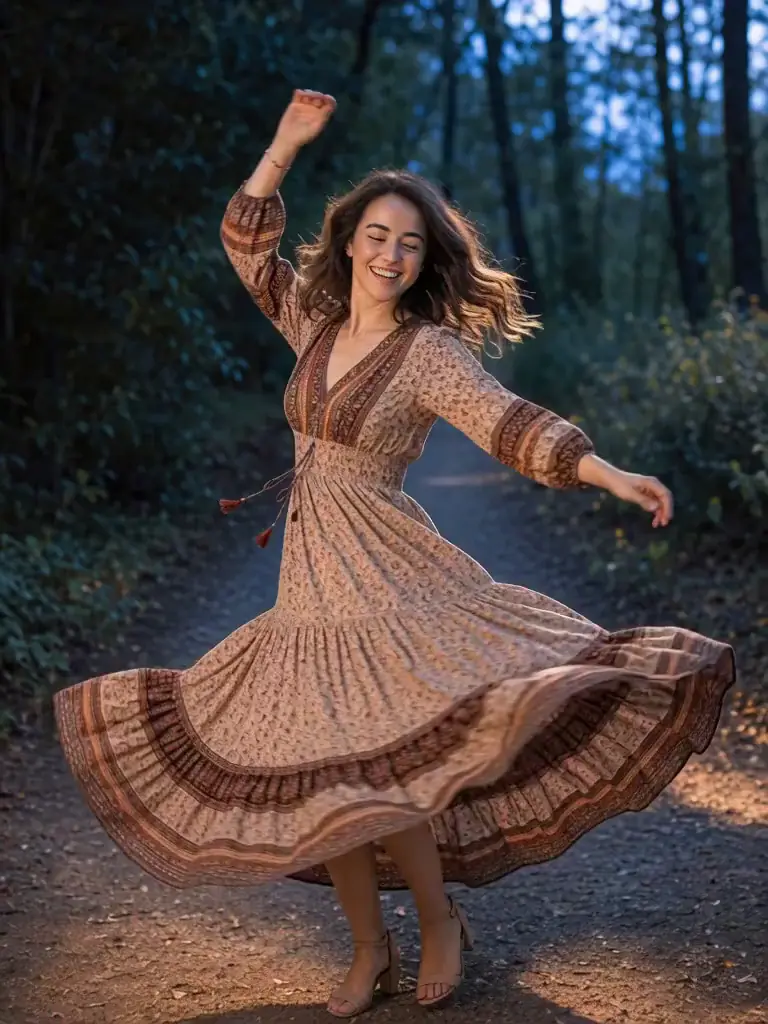
2. Describe the motion
“The subject spins and dances with smooth, natural movement. Keep the original portrait framing, facial details, and lighting stable while the camera gently follows the motion.”
3. Generate the video
Video generated from the source image
See how an AI image to video generator uses a start frame, an end frame, and a motion prompt to guide a more controlled video.
1. Add start and end frames
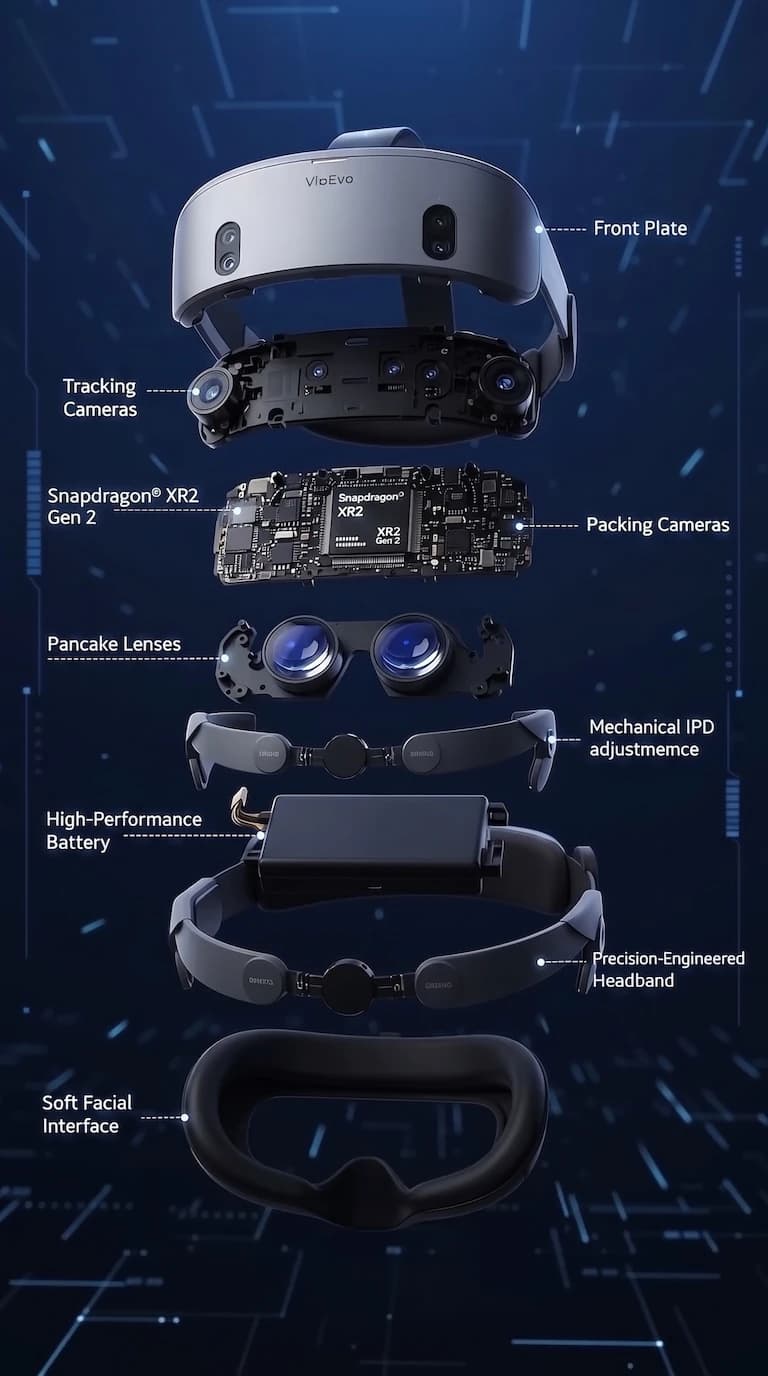
Start frame
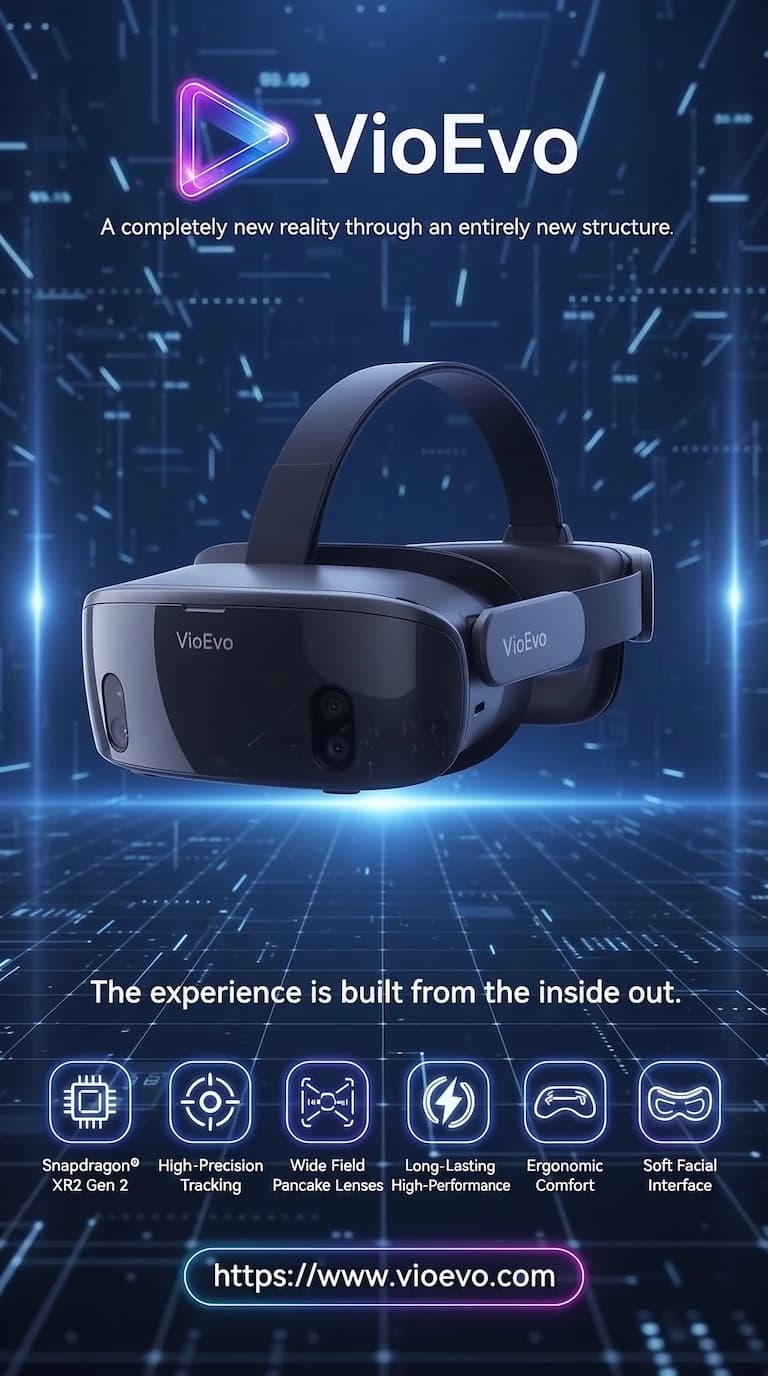
End frame
2. Describe the transition
“Cinematic 3D commercial sequence. The exploded headset components seamlessly assemble together in mid-air with high-tech precision. Glowing neon circuit energy pulses through the internal chips and optical lenses as luminous light trails swirl around the device. Smooth orbital camera tracking, futuristic tech product launch atmosphere, transitioning flawlessly into the final sleek commercial poster.”
3. Generate the video
Video generated from start and end frame images
Choose among Seedance, Veo, and Kling based on speed, visual quality, and frame control for your image to video project.
Use Grok Image to Video workflow or Veo 3.1 Fast to test motion prompts, camera directions, and creative variations before a final render.
Colorful Candy Array
Choose Veo 3.1 Quality when portrait details, product shape, lighting, and polished campaign visuals matter most. Seedance 2.5 is another quality-focused option.
Rain-Soaked Cowboy Hat
Choose Kling 3.0 or Seedance AI Video Generator when one or two frame images need to guide how the clip starts and how the motion develops.
Misty Waterfall Overlook
Decide what the model should preserve before you define the motion. This keeps the source recognizable while giving the AI video a clear direction.
Use movement, framing, and finish as three practical controls for turning a strong still image into a deliberate AI video.
After the example above, use this repeatable workflow to choose a clean source image, write a stronger motion prompt, and refine your AI video without losing the original composition.
Choose a clear JPG, PNG, or WEBP image with enough detail, contrast, and room around the subject for the model to animate reliably.
Describe the camera move, subject action, and environmental motion. For example: slow camera push-in, gentle wind in the fabric, preserve the original composition.
Choose the aspect ratio before generating so the clip fits a website, product page, YouTube video, or vertical social placement.
If the subject changes too much, reduce motion and simplify the prompt. If the result is too static, add one clear camera or environmental movement.
Create your free account in seconds and start generating right away.