
Image Merger
Image merger tools shouldn't require downloads or accounts: drop 2 to 9 photos into your browser to arrange them in a horizontal row, vertical stack, or multi-cell grid with custom borders. Fine-tune framing, spacing, and export resolution locally whenever you need a crisp side by side photo.
Drop 2 to 9 photos here, or click to browse
Supports JPG, PNG, WebP, GIF, and BMP • Paste screenshots with Ctrl+V • Up to 50MB per image
- Zero Server Upload: Photos Stay Strictly on Your Device
- Flexible Framing: Keep Full Photos or Fill Clean Grids
- High-Resolution Export: Download JPG, PNG, or WebP up to 4K
Free browser-based tool for desktop, iPhone, and Android.
Combine Photos Into One Image
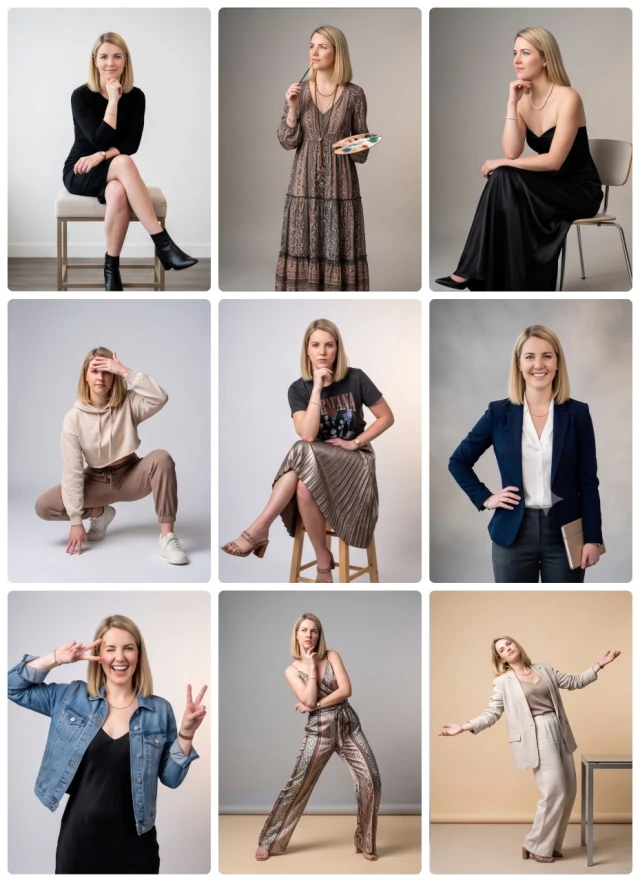
Choosing the right layout when you combine photos depends on how people will view the finished file. A horizontal row works well for before-and-after comparisons or front-and-back ID scans, a vertical stack keeps chat threads readable on phones, and a multi-cell grid organizes family group shots or product angles cleanly.
Real-world shots rarely share identical dimensions when you combine pictures from phones and cameras, which often leaves awkward gaps or clipped heads in basic tools. This browser-based photo combiner handles mixed orientations cleanly: Fill & Crop aligns every panel into uniform frames. Inside each frame, you can pan, zoom, rotate 90 degrees, or flip horizontally, while Auto Fit keeps every pixel intact without trimming the edges.
Dial in your spacing, outer border, rounded corners, and background color, then export from this local picture merger in seconds with no desktop software or upload queues.
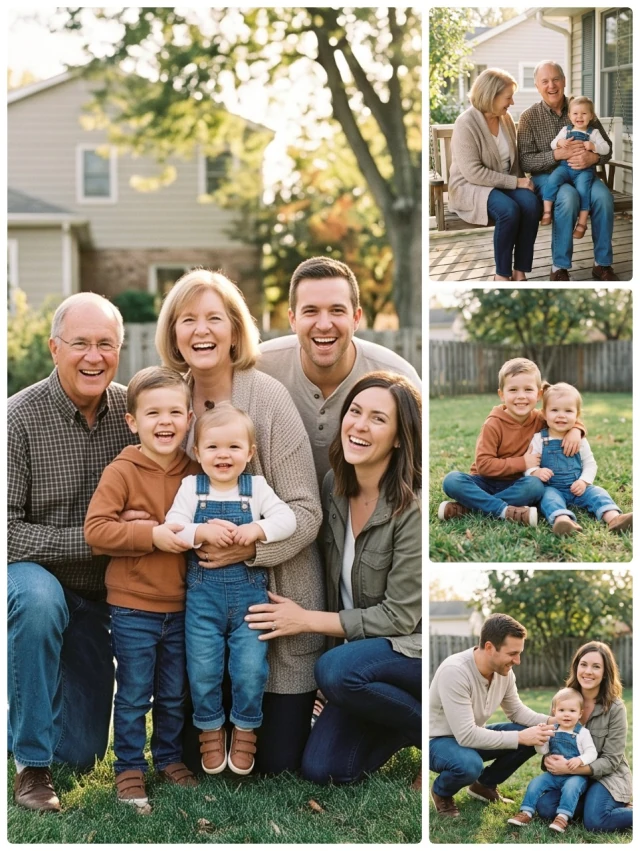
Merge Photos Without Losing Quality
When you merge photos in chat apps or typical online utilities, your files often get compressed on upload, re-encoded on export, and compressed again on download, leaving muddy textures and halos around sharp edges. JPEG is a lossy format, so every extra save cycle permanently discards color and edge data that cannot be recovered.
This image merger skips server recompression altogether by decoding your original files locally in browser memory and rendering the layout in a single decode-and-encode pass, keeping source sharpness intact. Pick 1K (1280px) for lightweight email attachments, 2K (2560px) for blogs and social feeds, or 4K (3840px) when combining four to nine detailed shots.
Export as PNG whenever your layout includes UI screenshots, documents, or fine text, or choose high-quality JPG or WebP for photography when smaller file sizes matter.
Combine Two Photos Side By Side
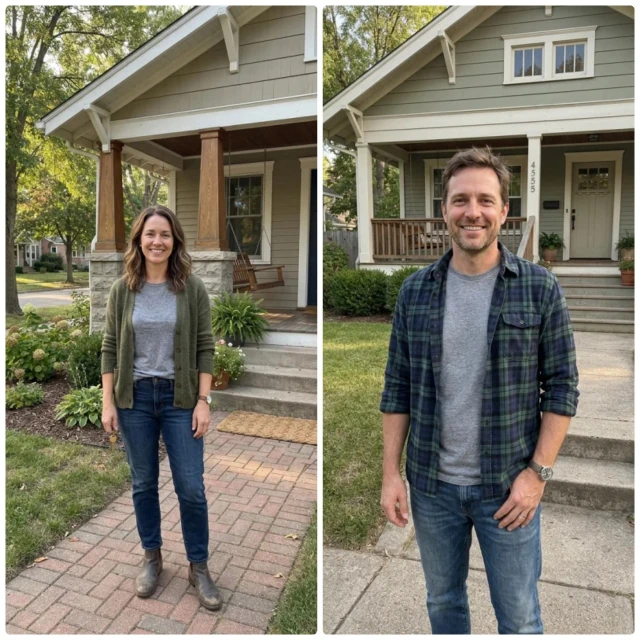
Creating a clean side by side photo is the quickest way to show a before-and-after renovation, compare two product colors, or pair two portraits in one frame. When you combine two photos shot at different distances or angles, drop both files in, pick an equal row or asymmetric split, and drag each panel in Fill & Crop mode until eye lines or horizons match.
If both shots need to stay completely uncropped, switch to Auto Fit with Auto aspect ratio so both panels share the same height while keeping their full original width. It also works directly in your mobile browser: open this page in Safari on iPhone or Chrome on Android, pick two shots from your library, adjust borders by touch, and save straight back to your phone.
Check the alignment in fullscreen preview and save your finished side by side photo, or switch to our AI image combiner if you instead want two separate subjects placed into one newly generated scene.
Merge JPG & JPEG Files
Whether your camera saves files as .jpg or .jpeg, both extensions point to the exact same JPEG image format, differing only because older Windows systems shortened file extensions to three letters. You can merge JPG and JPEG shots alongside PNG, WebP, GIF, or BMP files in one batch of up to 9 photos (50MB each), or paste screenshots straight from your clipboard without converting file types first.
Keep one format rule in mind for transparency: JPEG has no alpha channel, so exporting transparent PNGs as JPG automatically fills transparent spacing with white. Switch the output format to PNG or WebP whenever you want transparent borders or rounded corners to stay see-through.
For large multi-photo batches, automatic pixel-area limits keep exports fast and reliable on both desktop and mobile browsers.

Image Merger FAQ
What is the fastest way to combine two photos into one file?+
Drop both photos into the workspace above, keep the horizontal row or pick a vertical stack, and drag each frame in Fill & Crop mode to line up horizons or faces. Click Download Merged Image or copy the result straight to your clipboard.
Can I put two pictures together with different sizes or orientations?+
Yes. Choose Auto Fit to match each frame to its natural proportions without cropping, or choose Fill & Crop to align both panels into equal frames and drag each photo into position.
How Do I Combine Images Into One?+
Select up to 9 photos from your computer or phone, choose a row, vertical stack, or grid layout, and adjust spacing, borders, or rounded corners. When the preview looks right, export the final layout locally without uploading anything to a server.
What is the file limit when I combine photos into one layout?+
You can load between 2 and 9 photos per batch, with a 50MB limit per file. Use the arrow buttons on the photo strip above the preview to reorder frames before exporting.
Does this picture combiner add watermarks or reduce photo sharpness?+
No watermarks are added to any export, and your files are never sent through server-side recompression. Pick 2K or 4K resolution and PNG format if you want crisp text, screenshots, or fine edge detail.
Is this free photo merger available without creating an account?+
Yes, the tool is free to use in your browser with no sign-up, login wall, or daily export cap. Because your device renders the final file locally, you can run as many batches as you need.
Are my private photos uploaded when using this free image merger?+
No, your files stay on your own computer or phone from start to finish. All decoding, layout adjustments, and exports happen inside local browser memory, so ID scans, receipts, and family shots never touch a remote server.
What is the difference between this photo combiner and the AI version?+
This tool keeps your original shots intact and arranges them into clean rows, stacks, or grids with optional borders and spacing. If you want to place separate people or products into one newly generated scene with consistent lighting, use our AI image combiner instead.
Can I use this as a photo joiner?+
Yes, it works for joining sequential screenshots, before-and-after pairs, or multi-panel comparisons into a single horizontal or vertical strip. Unlike panorama tools that try to warp overlapping edges together, it places each frame cleanly side by side or top to bottom.
Bring Your Visual Stories to Life with VioEvo
Need more than static layouts? Turn prompts or photos into AI video clips and shorts right inside VioEvo.
Create with Veo, Seedance, Kling, and Wan in one workspace